Writing Your Content
The Eduskript editor is split-screen: markdown source on the left, live preview on the right. As you type, the preview updates in real time. Both panes scroll-sync — scroll the source, the preview follows, and vice versa.
The editor at a glance
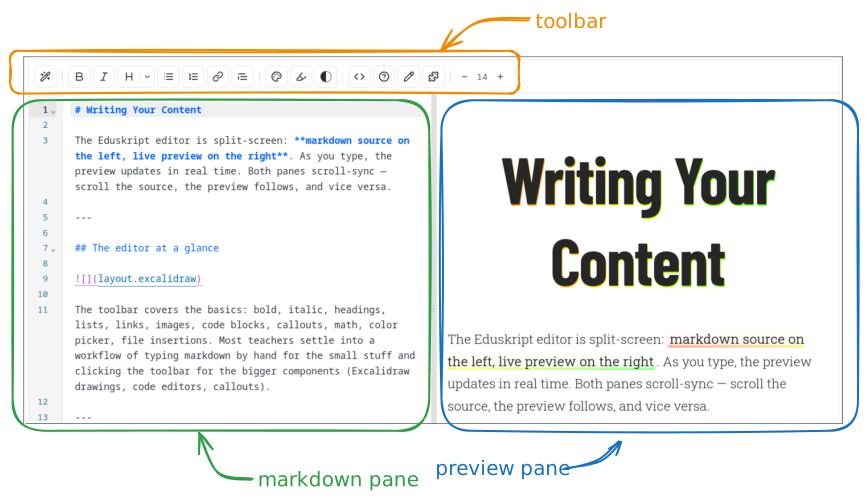 Editor layout: source on the left, live preview on the right
The toolbar covers the basics: bold, italic, headings, lists, links, images, code blocks, callouts, math, color picker, file insertions. Most teachers settle into a workflow of typing markdown by hand for the small stuff and clicking the toolbar for the bigger components (Excalidraw drawings, code editors, callouts).
Standard markdown — what works as expected
Eduskript uses CommonMark + GitHub-Flavored Markdown as a base, then adds custom extensions on top.
| Syntax | Result |
|---|---|
# Heading 1 | top-level heading |
## Heading 2 | second-level heading |
**bold** | bold |
*italic* | italic |
***both*** | both |
`inline code` | inline code |
~~strikethrough~~ | |
==highlight== | highlighted text |
[link text](https://example.com) | hyperlink |
 | image (uploaded file) |
> blockquote | block-quoted text |
- list item | unordered list |
1. numbered | ordered list |
- [ ] task | task list with checkbox |
| Pipe tables | full GFM table support |
--- | horizontal rule |
Triple backticks ``` | code block |
Headings are special — they auto-generate the page outline (table of contents in the right sidebar) and become anchor links you can share directly.
Hover toolbars in the preview
Hover your mouse over rendered content in the preview pane and contextual toolbars appear:
- Hover an image → resize handles, alignment buttons, alt-text editor
- Hover a code editor → "Insert above / below" arrows, edit settings (id, language, db)
- Hover an Excalidraw drawing → "Open in editor" to modify
- Hover a callout → change the type, toggle collapsed/expanded
- Hover a video → poster picker, autoplay/loop toggles
This is the fastest way to tweak a component once it's in the page — no need to memorize attribute syntax.
The top-bar features
| Button | What it does |
|---|---|
| Save | Save your draft (Ctrl+S works too). Auto-saved every few seconds. |
| Preview | Open the rendered page in a new tab — see exactly what students see. Works for drafts. |
| Publish | Toggle the page between draft / published / unlisted. |
| Manage | Drawer with the skript's settings, page list, file/video panels. |
| Files | File panel for uploads (images, PDFs, databases, code). |
| Videos | Video panel for Mux-hosted video uploads. |
| AI ✨ | AI Edit — describe a change, the AI generates a diff for you to review. |
| Fullscreen | Hide everything else; just editor + preview. |
Two ways to write the same thing
For most things, you can use markdown OR HTML. Markdown is shorter; HTML lets you set extra attributes.

<image src="fish.jpg" alt="A school of fish" width="50%" align="right" wrap ></image>
Both render an image. The first uses the file's full width. The second floats the image right at 50% width with text wrapping around it.
The same applies to code editors, videos, callouts, plugins — pick whichever feels natural for the case at hand.
Custom HTML rulesCustom Eduskript components must be lowercase with string-quoted attribute values. No JSX, no PascalCase.
- ✅
<code-editor data-language="python">- ❌
<CodeEditor language="python">(PascalCase)- ❌
<code-editor data-id={pageId}>(JSX expression)Most modern browsers tolerate uppercase tags but Eduskript's renderer normalizes everything to lowercase before parsing.
Drafts auto-save, and version history
Every page change is saved automatically. You can also:
- Manually create a version — adds a labeled snapshot to the version history
- Restore an older version — picks an old snapshot and replaces the current draft
- Auto-versions every 100 keystrokes — accidental deletes are recoverable
Find version history in the page editor's overflow menu (⋯).
Mobile and tablet editing
The editor is responsive. On a phone, the preview collapses into a tab — you swipe between source and preview. Touch-friendly toolbar with bigger hit targets. Drawing on the page (annotations) works with finger or stylus.
That said, this is a tool for teachers — most of the heavy lifting happens at a desk. The mobile editor is for last-minute tweaks, not full lesson authoring.
Productive habits
Use the toolbar for what's hard to typeCode editors, Excalidraw drawings, callouts, and color spans have just enough syntax that the toolbar saves time. For prose, headings, lists, and emphasis, type by hand — it's faster.
Headings are your outlineUse
##for major sections and###for sub-sections. Students see them in the right-side outline, can click to jump, and can share anchor links.
Preview on a real deviceClick Preview, copy the URL, open it on your phone or a colleague's laptop. Catches font-size and layout issues that only show up at certain widths.