Your First Skript
Welcome — this manual walks you through everything Eduskript can do, top to bottom. By the end, you'll know how to build a self-grading Python exercise, host a video without YouTube, broadcast annotations to a class in real time, and run a locked-down digital exam. This first page just gets you oriented.
The 30-second mental model
Eduskript content has three levels:
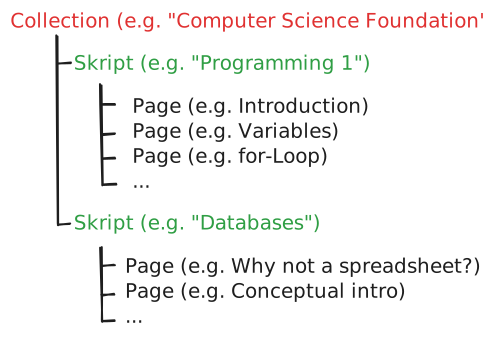 Content hierarchy: Collection → Skript → Page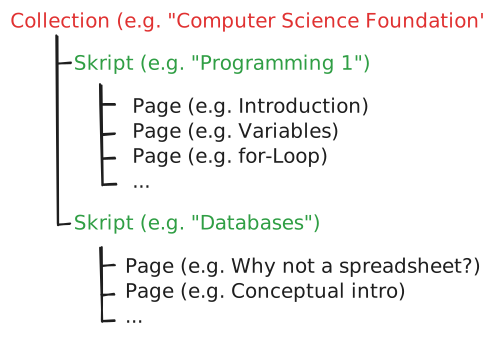
You can also have front pages (custom landing pages) for your public site, for individual collections, and for individual skripts. These are like full-bleed marketing pages with the same editor, used as the "front door" before students dive into pages.
Everything is owned by your account. URLs reflect the structure:
eduskript.org/<your-page-slug>                                    → your front page
eduskript.org/<your-page-slug>/<collection>                        → collection front page
eduskript.org/<your-page-slug>/<collection>/<skript>               → skript front page
eduskript.org/<your-page-slug>/<collection>/<skript>/<page>        → a lesson
Setting up your public page
- Create an account on eduskript.org (email + password, or Google/GitHub OAuth)
- Go to Dashboard → Page settings
- Pick your page slug — your public URL is
eduskript.org/<slug>. Choose carefully: slugs are unique and changing one breaks existing links. Letters, numbers, hyphens. No spaces, no underscores, no emojis. - Add a page name (display name) and page description (one-liner shown on your landing page and in OG previews when you share links)
Your public page is now live at eduskript.org/<your-slug>. It's empty until you add content.
Page name vs your namePage name is the public-facing identity of your educational page (e.g. "Informatik mit M. Chéhab"). Your personal name lives in your profile and is only shown to collaborators. Two separate fields, two separate purposes.
Creating your first piece of content
The fastest path:
- Dashboard → Page builder — this is your home base for organizing content
- Click + New collection — give it a title (e.g., "Introduction to Statistics")
- Inside the collection, click + New skript — (e.g., "Descriptive Statistics")
- Inside the skript, click + New page — (e.g., "Mean and Median")
- Write your content in the editor
- Toggle Published when ready
That's it — your page is live at eduskript.org/<slug>/intro-stats/descriptive/mean-median.
Drag everythingCollections, skripts, and pages are all drag-and-drop reorderable in the page builder. Drag a skript from one collection into another. Drag a page up or down to change its order in the sidebar. Permission rules apply (see Collaboration).
Want a head start? Seeded examples
When you sign up, your account is seeded with a "Welcome to Eduskript" skript that's a hands-on tour — every page is itself an Eduskript page with examples you can edit and play with. If you want fresh copies, Dashboard → Settings → Seed example content re-creates them.
Use them as reference material, fork them into your own skripts, or delete them once you're comfortable.
URL structure recap
| URL pattern | What it shows |
|---|---|
/<slug> | Your front page (custom landing page if you have one, otherwise auto-generated index) |
/<slug>/<col> | Collection's front page (or its skript list) |
/<slug>/<col>/<skript> | Skript's front page (or its page list) |
/<slug>/<col>/<skript>/<page> | Individual page |
Share any URL directly. They're stable — changing a page's title doesn't change its slug unless you explicitly rename the slug.
Where to go next
Each chapter of this manual stands on its own — pick what's relevant:
- 02 — Writing your content — the editor, markdown basics, the live preview
- 03 — Publish and share — draft / published / unlisted, sharing URLs, anchor links
- 04 — Images and diagrams — drag-and-drop images, theme-aware Excalidraw, color palette
- 05 — Adding files — files panel, the file storage system, supported types
Then jump to the Components section for callouts, math, code editors, SQL, plugins, and more.